


Introduction
Is it truly impossible to **edit payment mode in POS Odoo** once a transaction is finalized, or is there a reliable workaround for this common retail challenge? This question frequently arises for managers and cashiers relying on Odoo’s robust Point of Sale system. The Odoo POS module is engineered for efficiency and accuracy in high-volume retail environments. Despite its strengths, the reality of human operation means that errors, such as selecting the wrong payment method, are bound to occur. These simple mistakes can lead to frustrating discrepancies during the end-of-day reconciliation process, impacting financial reporting and staff accountability. This article serves as a definitive guide to managing payment methods in Odoo POS. We will cover the essential steps for initial setup and, more critically, explore the proven solutions for correcting a payment mode error after the fact.
Configuring Payment Methods in Odoo POS
A solid, error-free configuration is the foundation of smooth POS operations. By setting up clear and accurate payment methods from the start, businesses can significantly reduce the likelihood of costly mistakes.
Accessing the Configuration Menu
To begin the setup process, an authorized user must first navigate to the Point of Sale application within their Odoo instance. The necessary tools are found under the **Configuration** menu, specifically the **Payment Methods** section. This area provides a complete list of all active payment options, such as ‘Cash,’ ‘Bank,’ or ‘Credit Card,’ and is where new, customized methods can be created to suit the business’s unique needs.
Creating a New Payment Method
When defining a new payment method, the most critical step is ensuring it is correctly linked to the appropriate **Journal**. This journal, which is managed within the Accounting application, is vital for proper financial integration. The link ensures that all transactions processed through this method are accurately recorded and flow seamlessly into the company’s general ledger and financial reports.
Assigning Methods to a POS
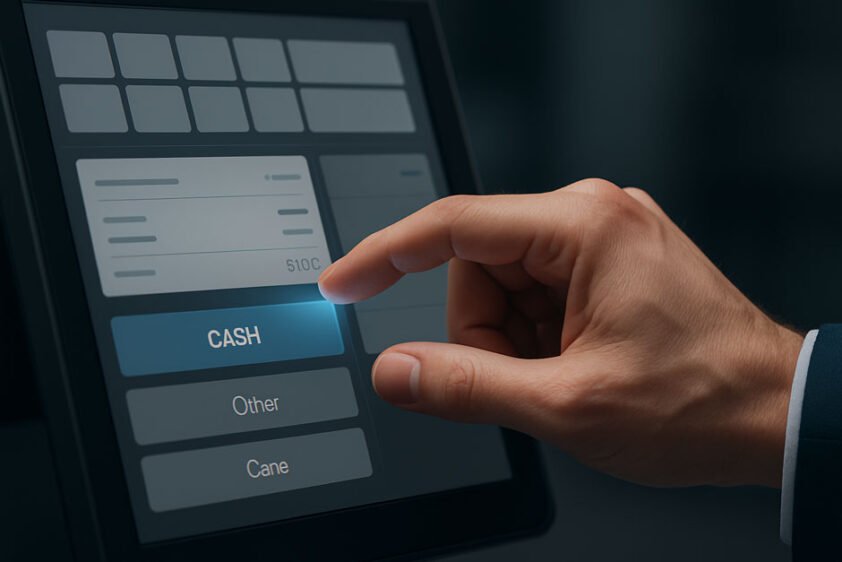
Many businesses operate multiple physical Point of Sale locations, each potentially requiring a different set of payment options. Odoo allows for this flexibility by letting users assign specific payment methods to each POS configuration. By editing the individual POS record, users can select exactly which methods will appear as buttons on the cashier’s screen. This customization prevents confusion, speeds up the checkout process, and enhances the overall user experience.
The Challenge of Post-Payment Correction
The difficulty in changing a payment mode stems from Odoo’s core design philosophy. Once a POS order is validated and the payment is registered, the system locks the transaction to maintain strict data integrity. This design is intentional, aiming to prevent unauthorized or fraudulent changes to financial records. However, it creates a significant hurdle when a genuine mistake occurs. Scenarios like a cashier mis-keying ‘Cash’ instead of ‘Card,’ or a customer suddenly changing their mind, demand a solution. In these situations, the ability to **edit payment mode in POS Odoo** becomes a necessity for accurate session balancing.
Solution 1: Utilizing Third-Party Modules
For retail environments that prioritize speed and ease of use, specialized third-party modules offer the most practical solution. The Odoo Community Association (OCA) and various developers provide extensions designed to safely override Odoo’s default locking behavior. These modules, often referenced in the Odoo community, typically introduce a dedicated “Change Payment” or “Edit Payment” function directly into the POS order interface. This streamlined approach is highly recommended. It empowers cashiers to quickly and safely correct errors without needing to involve accounting staff, thereby minimizing delays and improving customer flow.
Solution 2: Manual Correction via Accounting
When the use of third-party modules is not feasible, or if the error is only discovered after the POS session has been closed, a manual correction process through the Accounting application is the only recourse. This method is complex and should be reserved for experienced personnel.
Unreconciling Journal Entries
The first and most crucial step in this manual process is to locate the journal entry associated with the incorrect payment. This entry must be **unreconciled** from the bank statement or cash register reconciliation. Unreconciling effectively breaks the initial accounting link, which then allows the underlying payment record to be modified or, more commonly, canceled entirely.
Cancelling and Re-registering Payment
With the journal entry open, the incorrect payment must be formally canceled. Following this, a new payment is registered against the same POS order, ensuring the correct payment method is selected this time. Finally, the new, correct journal entry must be reconciled to complete the process. While effective, this manual intervention is time-consuming and carries a higher risk of introducing new accounting errors if not performed with extreme care.
Best Practices for POS Payment Management
To proactively reduce the need for post-transaction corrections, businesses should adopt several robust management practices. Investing in thorough and ongoing training for all cashiers is paramount. A well-trained team that understands the correct use of payment buttons and the POS interface is the most effective defense against payment mode errors. Furthermore, it is wise to establish a clear, documented policy on how and when to correct payment errors. Whether the chosen method is a third-party module or the manual accounting process, consistency ensures compliance and minimizes confusion.
Conclusion
While the ability to directly **edit payment mode in POS Odoo** for validated orders is not a standard feature, the problem is far from insurmountable. Businesses have clear, viable paths to manage this requirement. They can choose the simplicity and operational safety of a third-party module, which is often the best fit for busy retail environments. Alternatively, they can rely on the powerful, albeit more complex, manual correction process within the Accounting application. By mastering both the configuration and correction methods, businesses can ensure the integrity of their financial data while maintaining efficient and accurate retail operations.
Frequently Asked Questions (FAQ)
Can I change the payment method in a closed POS session?
No, a direct change is not possible. Once a POS session is closed and validated, the order is locked. Any necessary changes must be executed manually through the Accounting application by unreconciling and re-registering the payment.
What is a Payment Journal in Odoo POS?
A Payment Journal is an essential accounting record in Odoo used to track all financial movements for a specific payment type. Every payment method in the POS must be linked to a journal to ensure proper integration with the company’s general ledger.
Does changing the payment mode affect my accounting reports?
Yes, it absolutely does. Changing the payment mode directly dictates which accounting journal the revenue is recorded in. Therefore, corrections must be handled meticulously to maintain the accuracy of bank reconciliation and all subsequent financial statements.
Is there a built-in Odoo feature to edit payment mode after validation?
By default, Odoo does not include a simple, built-in feature to edit a validated payment mode. This deliberate design choice protects the integrity of financial data, meaning this functionality is typically added via specialized third-party modules.